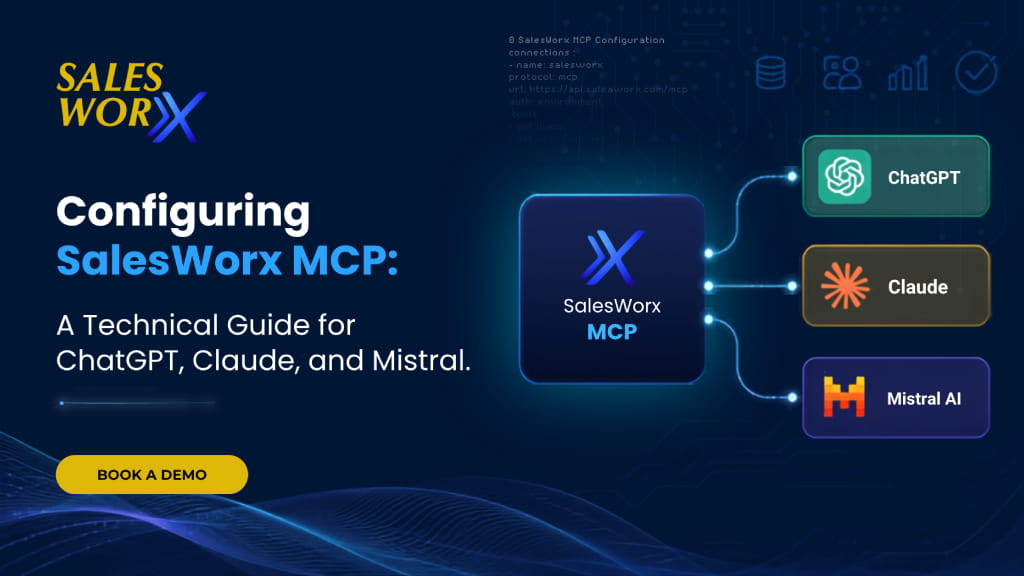
SalesWorx MCP is a retrieval layer that connects AI assistants, including ChatGPT, Claude, and Mistral, to the official SalesWorx product manuals through the Model Context Protocol. This guide covers what the integration does, how to configure it on each platform, how to verify the connection, and what to expect from a grounded response compared to an ungrounded one.
What MCP provides
Model Context Protocol, or MCP, is an open standard that allows an AI assistant to connect to an external source of information and retrieve real, current content from it before responding, rather than relying solely on its training data. SalesWorx implements this as a retrieval layer over its product manuals. When a connected assistant receives a SalesWorx-related query, it calls the SalesWorx MCP server, which searches the relevant manuals and returns extracted content with a page reference. The assistant constructs its response from that content directly.
Available tools
A connected assistant has access to four functions.
- query_salesworx(question) searches the scoped manuals and returns extracted content with page references.
- list_documents() returns the manuals available to a given endpoint.
- search_document(question, document_name) restricts a query to a named manual.
- get_document_structure(document_name) returns a manual’s table of contents.
Endpoint configuration
Each endpoint is scoped to a single product line:
- Credit Sales: https://helpassistant.salesworx.ae/mcp/agents/1
- Van Sales: https://helpassistant.salesworx.ae/mcp/agents/2
- DigIsal: https://helpassistant.salesworx.ae/mcp/agents/3
ChatGPT
- Click your profile name in the bottom-left corner and select Settings
- Go to Security and login and turn on the Developer mode toggle
- In the left-hand sidebar, click Plugins, then click Developer mode inside the Plugins modal
- Click the + button to add a New Plugin
- Enter a name (e.g. “SalesWorx Van Sales Support Agent – MCP”), an optional description, select Server URL as the connection type, and paste the endpoint (e.g.
https://helpassistant.salesworx.ae/mcp/agents/2); set authentication to No Auth or configure OAuth if the server requires it - Check the safety disclaimer box and click Create
- Review the Actions ChatGPT lists after scanning the server (
get_document_structure,list_documents,query_salesworx,search_document), then click Connect to activate the plugin
Claude
- Click the profile icon in the bottom-left corner and select Settings
- Under the Customize section, select Connectors
- Click the Add dropdown in the top-right corner and select Add custom connector
- Enter a connector name (e.g. “SalesWorx Van Sales Support Agent MCP”) and the server URL under Server URL (e.g.
https://helpassistant.salesworx.ae/mcp/agents/2); expand Advanced settings only if the server requires an OAuth Client ID and Secret - Click Add
- Click the connector name on the Connectors page to open its permissions, and set each exposed tool (Get document structure, List documents, Query salesworx, Search document) to Always allow, Ask every time, or Deny
Mistral
- Under Vibe in the left navigation panel, click Connectors
- Click + Add Connector in the top-right corner
- Select the Custom MCP Connector tab
- Enter a title (e.g. “SalesWorx Van Sales Support Agent – MCP”), the full endpoint under Server, an optional description, set Authentication Method to No Authentication (or the required method), and set visibility
- Click Connect
Calling the connector in a conversation
Each platform requires one further step to bring it into a given conversation:
ChatGPT: Open a new chat, click the + button in the prompt bar to open the tools/plugins menu, and select the SalesWorx plugin. ChatGPT does not reliably choose custom tools over its built-in capabilities on its own, so queries get better results when the tool is named directly, for example “Use SalesWorx to look up incentive configuration.”
Claude: Tool availability is governed by the permission level set on each tool during setup. With Always allow, Claude brings a connected tool into the conversation on its own when it fits the query, without needing to be named. With Ask every time, Claude requests confirmation before each call.
Mistral: In a new chat, type “/” or click the + / Tools icon in the prompt bar, then select the SalesWorx connector under Connectors. Mistral executes the corresponding function automatically and summarizes the response in the chat.
Connection verification
Endpoint availability can be confirmed independently of any AI assistant using a direct JSON-RPC request:
curl -sS -i \
-X POST https://helpassistant.salesworx.ae/mcp/agents/1 \
-H “Accept: application/json, text/event-stream” \
-H “Content-Type: application/json” \
–data-binary ‘{“jsonrpc”:”2.0″,”id”:1,”method”:”initialize”,”params”:
{“protocolVersion”:”2024-11-05″,”capabilities”:{},”clientInfo”:
{“name”:”curl-smoke”,”version”:”1.0″}}}’
A successful connection returns an HTTP 200 response with a serverInfo.name matching the scoped agent, for example “SalesWorx Credit Sales Support Agent MCP.” Once confirmed, the assistant automatically discovers the four functions listed above.
Comparative output: with and without MCP
The practical value of this integration is that responses are grounded in the SalesWorx product manuals, with a page reference attached, rather than built from general knowledge.
For example, a query on configuring KPI-based incentives for a Van Sales team, asked without SalesWorx context, returns a generic incentive design framework: selecting KPIs, setting thresholds and payout bands, and weighting them into a combined score. It is directionally reasonable, but it does not reference SalesWorx and offers nothing a manager could configure directly inside the system.
With SalesWorx MCP connected, the same query returns the actual configuration sequence from Chapter 13 of the SalesWorx Back Office User Guide (pp. 125–130):
- Assign KPI weightage through Manage Incentives → Incentive Weightage, across Net Sales Value, Net Sales Volume, and Successful Visits (p. 126)
- Define payout slabs through Manage Incentives → Incentive Payout Slabs, specifying a parameter, achievement range, and payout percentage per slab (p. 127)
- Set individual monthly targets through Manage Target, per employee per parameter (pp. 127–128)
- Run Generate Incentive to calculate incentives for the previous month (pp. 129–130)
- Review and settle payouts through the Incentive Statement screen (p. 130)
Each step maps to an exact screen and page number a manager could act on directly.
Security
SalesWorx MCP is retrieval-only. It returns documentation content and page references, with no access to customer data, personal information, or write capability against production records. Each endpoint is scoped to a single product line, and all traffic is encrypted over HTTPS. API key authentication is supported for clients that allow it, such as Mistral. ChatGPT and Claude web currently support only OAuth or no-authentication connections, since neither platform’s connector configuration provides a mechanism for passing an API key directly.
Implementation checklist
- Identify the endpoint for the relevant product line (Credit Sales, Van Sales, or DigIsal)
- Add it as a connector in ChatGPT, Claude, or Mistral, following the platform-specific setup steps above
- Optionally validate the connection using the verification request above
- Enable the connector for the conversation and, on ChatGPT, name the SalesWorx tool directly in the prompt for reliable results
Teams with questions about authentication or endpoint scope can contact the SalesWorx team directly.